A cross-departmental social strategy can help facilitate company collaboration.
In your company, social media should be everybody’s business. It is time for your social strategy to include broader collaboration, breaking down your company’s silos. Here is why:
Insight into industry trends, so you stay ahead of the competition
The truth is, social media is bigger than just the marketing department. It can help gain insight into what customers need, generate sales leads, answer questions, and distribute valuable information to consumers. It impacts many different aspects of your business, so it makes sense to tap into departmental intelligence throughout the company.
Allowing access to the right people, across multiple departments, could actually facilitate the ultimate company collaboration. Your business can realize the full potential of social media use, and your customers get better service.
Tearing Down the Silos
Often a company has several silos in place: sales, customer service, new product development, and marketing are just a few examples. Historically these departments do not work together, and the sharing of information is rare.
But the digital age has changed the way business is conducted. Consumers are not only buying online, they are researching before they buy and asking questions about products or services through social media channels. In fact, one study found that social media is asserting itself as the primary customer communication channel.
Response time is also a factor to consider. One Harvard Business Review report found that the number of customers who expect a response through social media has doubled since 2013, yet seven out of eight messages to companies go unanswered for 72 hours. Why? Because the marketing department often needs to obtain answers from other departments in order to respond.
If you are ready to tear down those company silos, here is how you begin:
Define goals and identify who will be on your new social media team. Who is knowledgeable, articulate, and can handle social media needs within each department?
Assign social responsibilities to key individuals throughout your company, perhaps one assigned person per department. This can be effective and make one-on-one customer engagement manageable.
Clearly define the roles and responsibilities for customer service, public relations, marketing, sales, management, etc.
Marketing professionals are not typically trained to answer questions or complaints about service or product issues. Since the customer service department may need to handle several questions through social media channels, consider assigning more than one person within this department to provide a timely response.
Tap into knowledge from all departments to generate ideas, information, and data for informative, fresh content creation.
Keep your brand voice consistent by crafting guidelines for the style and tone for all social media interactions. Compiling a list of dos and don’ts is always helpful so everyone knows how to respond in difficult situations.
Today’s consumers are on social media and ready to engage. The question is, do you have a cross-departmental team ready to respond quickly and work collaboratively to meet their needs?
As the prevalence of smartphones increases, businesses must consider how their emails appear on mobile devices.
You may have created a marketing email masterpiece, but how will it look when someone reads it on a cell phone? This is a very real concern, considering that 56% of email opens occur on mobile devices.
But, the caveat is that your email, which is typically designed to be read on a laptop or desktop computer, must be easy to read on any device. If you send a marketing email that is not optimized for mobile, more than half of your recipients are straining and struggling to read your content. You’ve given them a good reason to delete it instead of reading it.
Here are a few tips for optimizing emails for mobile:
Keep it short and sweet.
Your message should be well articulated but simple. Keep paragraphs short and concise, and put all of the most relevant facts first.
Don’t picture this.
When it comes to images, less is more. Android devices automatically block images unless the user changes their settings. And for those who do see your image, it’s rarely optimized for their specific phone, since shapes and sizes of mobile screens vary. It becomes work for your reader to try to shrink or enlarge the image to see the whole message. Also note that when you embed large image files, they may take an excessively long time to load.
Hello. It’s me.
Be very concise with your “subject” and “from” lines, which are super-condensed on cell phones. For example, an iPhone (held vertically) only displays the first 25-30 characters of a subject line. Often, sender’s name is boldfaced and the first thing the reader sees. Make it easily recognizable!
Responsive: your new best friend.
Choose a “responsive” template, which will automatically fit an email to the screen on which it’s being viewed. This assures you that your marketing email will look the way you intended, whether it is viewed on a smartphone, tablet, laptop, or desktop computer. WordPress has pre-built themes that incorporate responsive design elements. Unfortunately, there’s no simple plugin to make a non-responsive template responsive.
Button up.
Avoid adding links. Use a button instead for your call-to-action. Make sure to set plenty of space around it, so it is easy to click without accidentally clicking something else. Buttons essentially prove to be much easier for people to click on when using a touchscreen.
Keep in mind: With 98.4% of the market share today, Android and iOS are the operating systems your emails typically will be viewed on.
To remain competitive, your marketing email designs must be optimized for mobile to remain consistent across multiple devices. It is wise to test how your emails look on different devices to see how they appear on each screen. But most importantly, choose a template that is responsive, and make these five tips a regular part of your email marketing strategy.
If you have put the resources into creating videos for your business, you absolutely want as many people to view them as possible. Hosting them on your YouTube channel is an excellent start. But you can do more to ensure your videos attain their maximum reach.
Here are seven ways to share video content from your YouTube page.
1) Optimize your YouTube channel.
After you have uploaded a video to your YouTube channel, make sure your viewers can easily find and watch it. There are a few ways to do this.
Add it to a playlist.
Consider YouTube playlists like chapters of a book. They help your audience understand what your channel is about and navigate to the content that interests them. Playlists also represent a marketing and branding opportunity for you. For example, Southwest Airlines’ Fee Hacker Tips playlist includes humorous, 15-second clips on how to save money when flying other airlines. Or the Late Late Show with James Corden has a dedicated playlist for its popular Carpool Karaoke segment.
Here’s how to create a playlist. Once you’re done, make sure to add a description of the playlist to give your viewers an idea what it is about.
Use it as the channel trailer.
You can choose to have a video trailer play when a user visits your channel. Much like a movie trailer, this video will give visitors an idea of what your channel — and, thus, your business — is about and will entice them to subscribe. Lonely Planet, for example, uses their beautiful Best Places to Travel in 2016 video as an introduction to their content.
Channel sections are like building blocks: They allow you to custom build your channel’s layout. You can create a section of particular videos, the most recently uploaded videos, a playlist (or playlists), and more, and then reorder the sections to best highlight the content you want to promote. Your channel can have up to 10 sections.
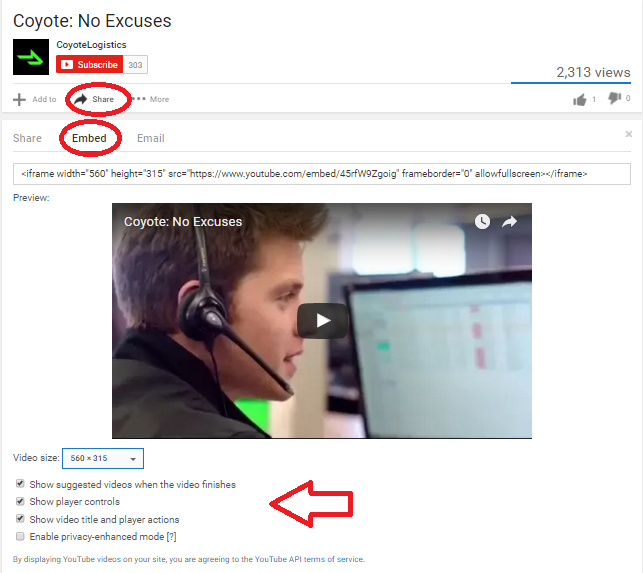
Once your video is on YouTube, it is super easy to share and embed in places like your blog posts. That means the reader won’t have to navigate to YouTube from your post to watch the video: It will play right in your post. To get the embed link, click on the video you would like to use. At the bottom of the video, click “Share,” and then “Embed.” You can choose the player size, as well as other things like what plays after the video is done. YouTube will generate a customized embed code based on your preferences, which you can add to your blog post.
3) Post it to your Facebook timeline.
The number of videos uploaded to Facebook increased by 94% from 2014 to 2015, with more than 50% of Americans who use Facebook daily viewing at least one video per day. What’s more, 76% of people in the US who use Facebook say they tend to discover the videos they watch on Facebook. This makes having video content on your page almost a must-do.
You can post your YouTube video to your Facebook timeline by clicking the share button and choosing the Facebook icon under the video on your channel. Note that you can also upload a video directly to Facebook by clicking “Add photos/videos” at the top of your newsfeed. There are pluses and minuses to both approaches. Viewer activity on your video embedded from YouTube is included in your YouTube analytics. Uploading directly to Facebook means you will have to analyze your YouTube metrics as well as your Facebook video metrics to get an idea of how your video is performing overall. On the other hand, native Facebook videos have twice as much organic reach as YouTube embeds.
4) Add a call-to-action button on your Facebook page.
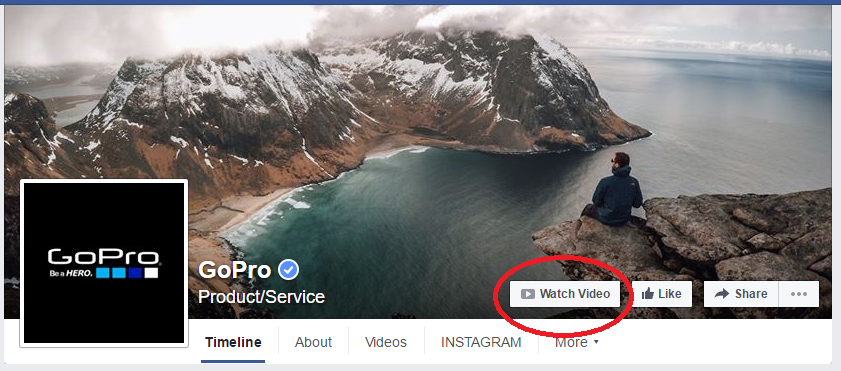
Drive viewers of your Facebook page directly to your video by creating a call-to-action button on your cover photo. To add, go to your page’s cover photo and click “Create Call to Action.” (Note: not everyone has this feature yet.) There are several options, including “Watch Video.” Action camera manufacturer GoPro makes use of this button, which leads to its YouTube channel feed on the GroPro site.
5) Use a Twitter Payer Card
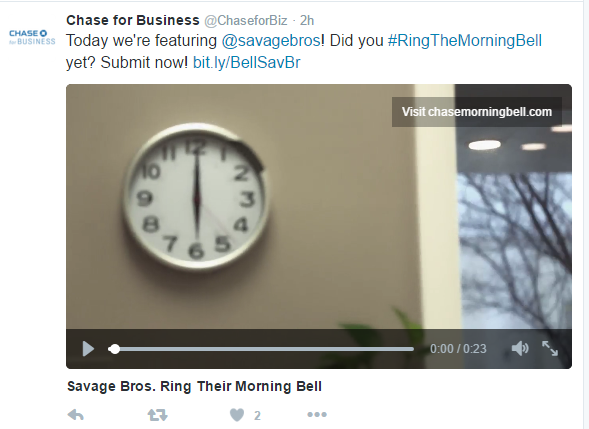
Don’t just tweet about your video — actually tweet it! Twitter Cards allow you to attach photos, videos, and media experience to tweets that drive traffic to your website. Ensure your the actual video populates in your followers’ Twitter feed (instead of just a link to the video) with a Player Card. Here’s an example of what it looks like:
6) Give a sneak peek on Vine or Instagram.
Users can share short video clips on Vine (6 seconds) and Instagram (60 seconds). Though the videos you produce for YouTube will likely be longer, you can offer a sneak peek of the more robust content through these social platforms. You’ll reach a wider audience, and probably a younger demographic as well.This is important, keeping in mind that the B2B buyer profile is getting younger, too.
7) Pin it.
Pinterest is another social platform many B2B companies have yet to tackle. But with 100 million active users, there is a lot of untapped potential there. “People are planning out really core and important parts of their lives on Pinterest,” says Pinterest CEO Ben Silbermann. That includes career and professional endeavors.
You can embed YouTube videos directly onto Pinterest. Just click the “Share” button under the video on your channel.
Another thing to consider: Pinterest boards rank in Google searches. Create some boards around keywords you would like to rank for, post relevant content (like videos) that you’ve created, and watch SEO and the reach of your content improve.
Take a moment to let that sink in. After Google, people are searching YouTube for content. Strike that: Over one billion people are searching YouTube for content.
This has raised the eyebrows of content marketers across many industries, including B2B businesses, who recognize the enormous potential for reaching customers through this medium.
If you haven’t considered distributing content through YouTube, you may soon find yourself scrambling to catch up with your competitors who are. For those who don’t know much about YouTube or are clueless about how it can work for business, here are a few basics to get you started.
What is YouTube?
YouTube is a free video-sharing website and social media platform that allows users to view, upload, share, rate, and comment on content. It was launched in 2005 by three former Paypal employees and purchased by Google in 2006. It now operates as a subsidiary of Google.
You do not have to be a registered user to view content, but you must be registered to upload content. Registered users can also subscribe to content providers’ channels to receive updates when something new is available, and can create playlists of favorite videos to view at any time.
In addition to being available on the YouTube website, YouTube videos can be embedded, shared, or uploaded to other sites (such as Facebook).
Why is it good for business?
YouTube has massive potential for businesses. Here are just five reasons to participate.
Users watch around 3.25 billion hours of video every month.
Videos with over 1 billion views: 10,113
80% of views are from outside the U.S.
More than half of views are from mobile devices.
You can navigate YouTube in 76 different languages.
2) Improved search rankings
YouTube videos are included in Google’s search results, ranking above web pages in certain searches. Potential customers searching for products and services like yours will be more likely to find you in such instances.
3) User experience
Video has become so popular for a reason: People like consuming it. By producing content in this medium, you are offering a user experience that is in high demand.
4) Build your brand
Video is the ideal storytelling platform, and it’s also perfect for how-tos, product demonstrations, and other content that demonstrates your company’s expertise. Show your brand personality and engage your audience while building your reputation as a thought leader in your industry.
5) Track performance metrics
YouTube Analytics makes it easy to see who is watching your videos and how they are engaging with them. Run reports on audience demographics, revenue, engagement, traffic sources, and more.
How do I get started?
There are two avenues for businesses who are looking to reach YouTube’s more-than-3-billion users.
For one, businesses can buy ads that run before other videos, beside playing videos, and in search results. Video ads are not covered in this post, but you can learn more about them here.
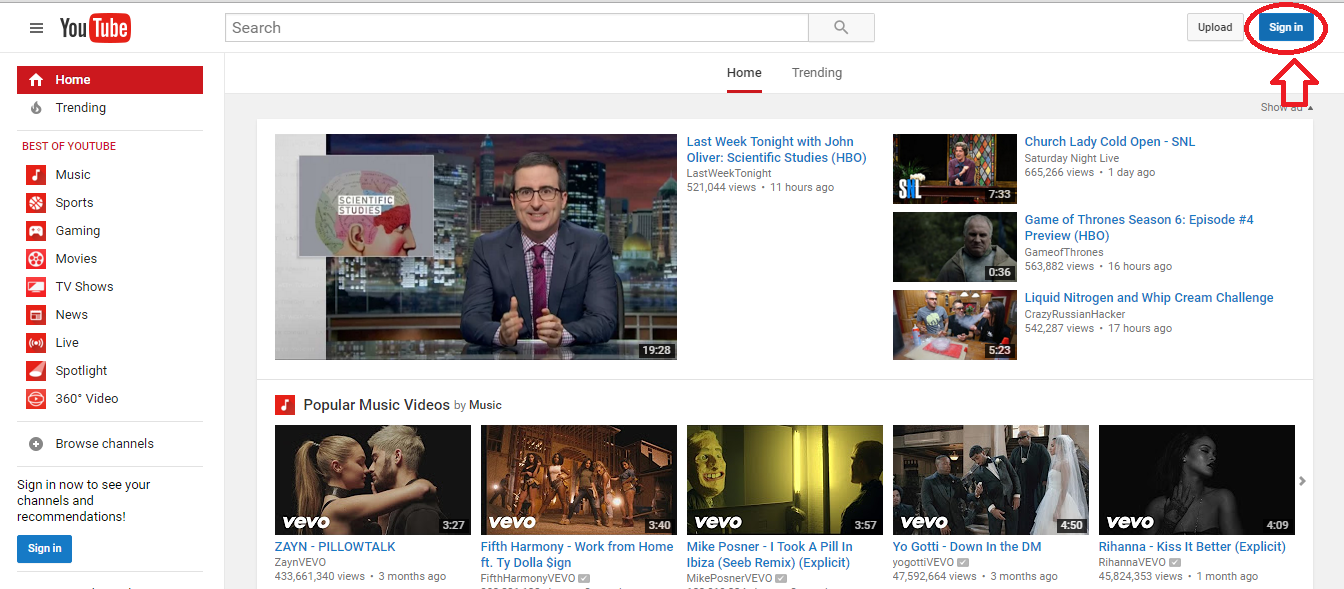
Secondly, businesses can create their own YouTube channel and upload original content as part of their inbound marketing programs. To get started, you will need to sign into your business’ Google account or create one. Find the sign in button at the top-right corner of the YouTube homepage.
With your account, you will own your very own “channel,” on which you will post your content. Branding your channel is an important step, as this will be the face of your company on this platform. Below are some tips.
Anatomy of a branded YouTube channel
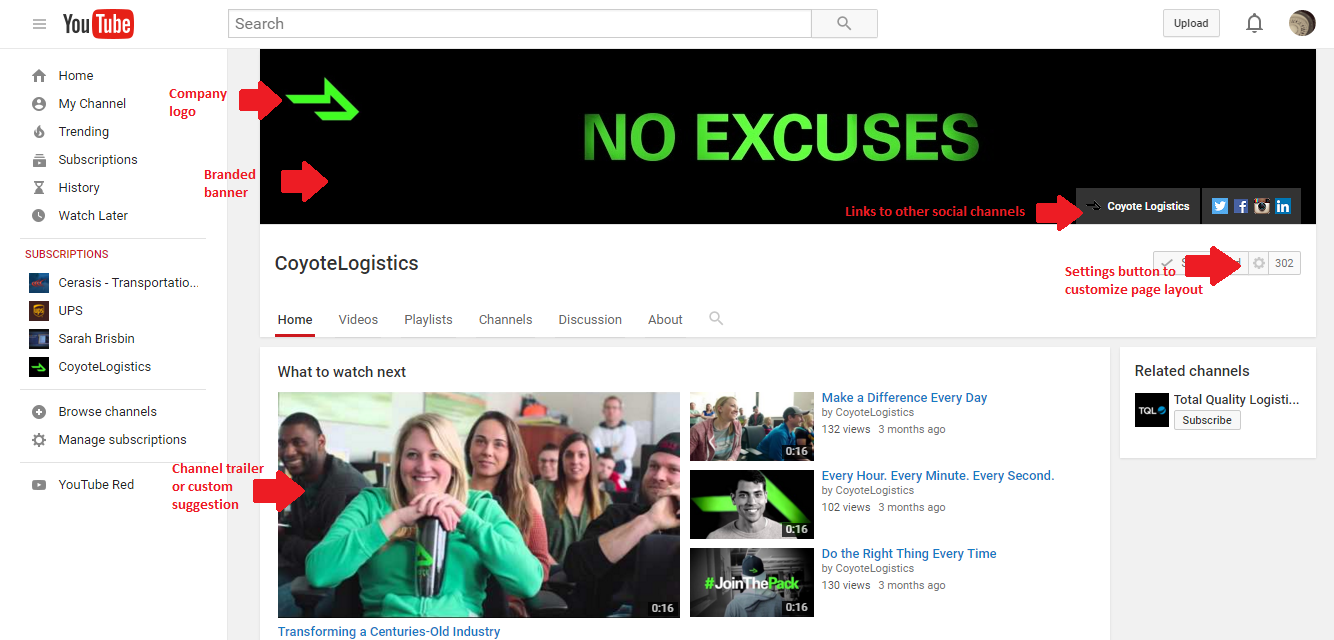
Coyote Logistics, a 3PL provider, has done an excellent job of branding its YouTube channel.
Company Logo
Upload your company’s logo by hovering over the channel icon and clicking the pencil icon when it appears.
Branded Banner
Upload an image that represents your brand and what users will find on your channel. Hover over the channel art, click the “Add channel art” button or the pencil icon in the upper-right corner and select “Edit channel art.” Coyote Logistics makes a bold statement (very representative of its brand personality) here. For the best results on all devices, YouTube recommends uploading a single 2560 x 1440 px image.
Social Icons
Provide links to your other social channels by hovering over the channel art, clicking the pencil icon in the upper-right corner, and selecting “Edit links.” Add the URLs for each of your channels under “Custom links.”
Customize Layout
Click the customize button to create a layout for your channel. You can add up to 10 “sections,” which allow you to group videos in a particular way. For example, you could add sections of recent uploads, popular uploads, playlists, etc.This helps visitors to decide what to watch — and lets you promote content you wish for visitors to see.
About
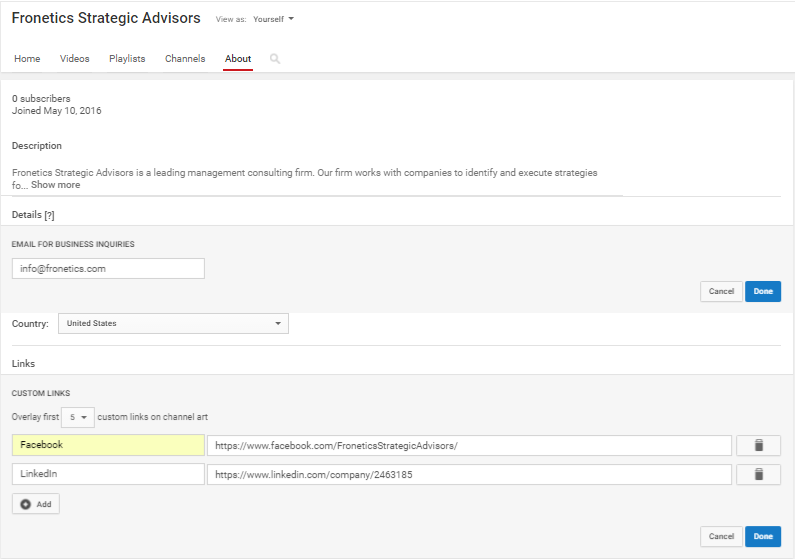
Navigate to the About section to add a channel description, business email address, country, and social links (if you haven’t already).
Uploading videos
Once you have your channel set, you’re ready to start adding your original content. YouTube Help has a wealth of resources to help you get started, problem-solve, and learn more. The below video offers an introduction to uploading videos in just a few quick steps.
Other terms to know
Playlist: Playlists let you organize your videos into different categories, like interviews, tips, product demonstrations, etc. Learn more.
Channel trailer: A short video, like a movie trailer, that gives visitors an idea of the kinds of videos they’ll find on your channel. Learn more.
YouTube Red: This is the premium subscription option that allows you to view videos without ads, watch videos offline, and more.
Facebook Live offers businesses a new, creative platform for engaging customers — here’s how to use it.
You may have noticed a sudden flurry of notifications on your Facebook account, alerting you to a new feature called Facebook Live. Facebook has slowly been rolling out Live since August 2015, making it available to all pages and profiles in December. And while it may be reminiscent of platforms like Snapchat and Periscope, which are popular social tools among America’s youngest users, this feature offers invaluable opportunities for businesses to reach customers in new and exciting ways.
Here is what B2B marketers need to know about Facebook Live.
What is Facebook Live?
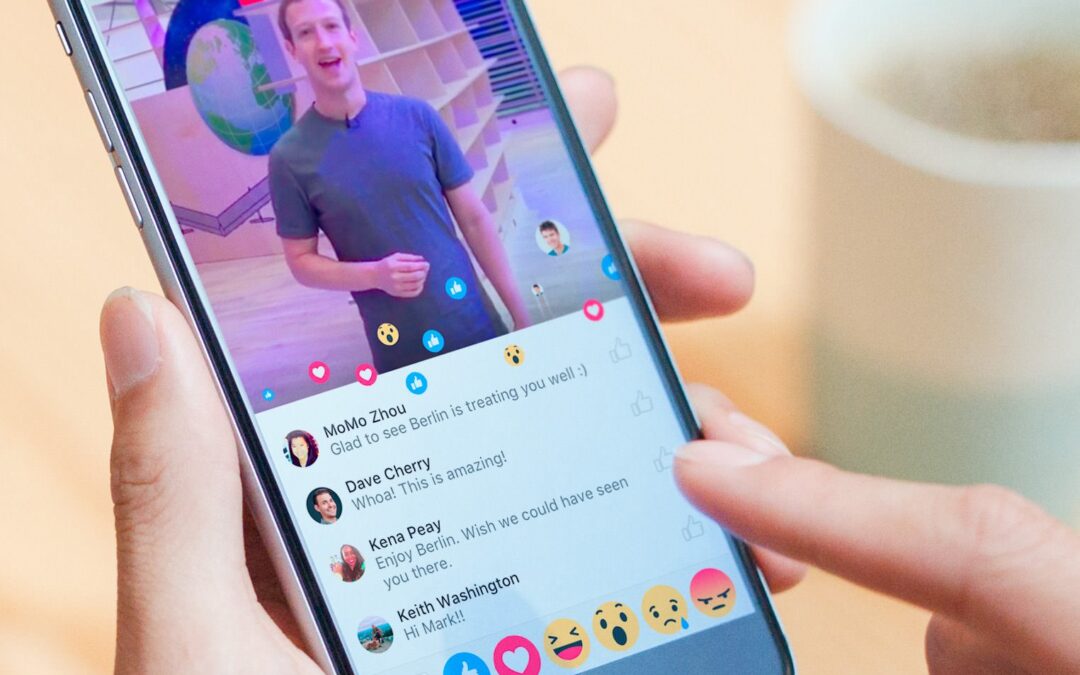
Facebook Live lets you broadcast in real time for up to 90 minutes at a time. People who have recently engaged (or who frequently engage) with your page will receive a notification that you are streaming live, and they can go to your page to view the video. Viewers can comment and react during the course of your broadcast, allowing you to read their remarks and respond immediately.
After the broadcast ends, the video will post on your timeline so those who missed it can watch it in full at a later time. You can edit or remove it, just like any other post, at any time.
Why is this good for business?
Video content is wildly popular. The number of videos uploaded to Facebook has increased by 94% over the last year, with more than 50% of Americans who use Facebook daily viewing at least one video per day. B2B businesses have caught on to this trend and have leveraged video quite successfully in their marketing efforts in the last year or two.
Facebook is an excellent forum for businesses to engage with customers, and Live can enhance this experience — or, at least, provide another avenue for doing so. There is something about being on air and uncensored that promotes transparency and offers the opportunity to connect with people in a very real way. Your business can showcase its brand personality, as well as its products and services, and offer high-value content to a wide audience through this channel.
Additionally, Live gets higher organic reach than non-live video, giving you a prominent spot in your followers’ feeds (without having to pay for it).
How does it work?
Tap “What’s on your mind” at the top of your News Feed.
Select “Live Video” from the drop-down menu.
Add a description and choose your audience before hitting “Go Live.” You’ll see a three-second countdown before your broadcast begins.
Note: Live is only available for iOS, Android, and Facebook Mentions.
Cool features
Target a very specific audience by choosing location, language, gender or age.
Choose where you broadcast live (other than your timeline) by posting to event pages and Facebook groups.
A very prominent “Follow” button at the bottom of your broadcast allows your viewers to opt in to receive notifications when you go live in the future. Viewers can also invite friends to watch live videos with them.
Edit your video after it posts to your timeline. You can select a thumbnail, select a category, include a URL, and add a call to action (such as Shop Now, Learn More, or Sign Up).
Filters allow you to adjust the quality and color of your video, and soon a drawing tool will allow you to doodle over it.
During your broadcast, you’ll see the number of live viewers, which friends are tuning in, and their comments in real time.
Increase your reach by boosting the post after you’ve concluded your broadcast, or by creating a video ad from your broadcast by using the Ads Manager.
The Live Map shows you where people are broadcasting around the world.
What kinds of content could B2B companies stream live?
Businesses have an incredible opportunity to engage with customers and partners with Facebook Live. Here are some ideas for the kinds of content your company could broadcast using this tool.
1) Behind-the-scenes glances
Show your audience your eco-friendly facilities, your impressive tradeshow set-up, your whiteboard after a strategic planning meeting, the inside of a fully packed delivery truck, a community service event, etc. There are a million creative ways to say something substantial about your business by offering a small glimpse into your day-to-day operations.
2) Q&As and Interviews
Live is an ideal platform for a Q&A-style broadcast. Invite customers to bring their questions or requests to a Live stream with one of your executives. Or, have a top-of-their-field expert offer insight on a particular topic or event.
3) Customer testimonials
Do you have any particularly happy customers who would be willing to speak about their experience working with your business? Or could someone on your team interview them? Not only is this great advertising for your company, it offers exposure for theirs as well.
4) How-tos, product demos, and sneak peeks
Build excitement for a product launch with previews, or demonstrate how to best use your product or service. Share your knowledge on best practices, tutorials, and processes related to your business.
5) Presentations, annual reports, celebrations, special events
Facebook Live offers a fresh way to present information or to share a special occasion with your online audience. Imagine announcing quarterly results this way, or honoring milestone employee anniversaries. This platform gives you a new format for marking such moments.






 What is Facebook Live?